
How AI Is Transforming Daily Work in Service Teams
Reduce downtime and improve service efficiency with AI-powered troubleshooting. Learn how service teams use ilean to solve problems faster and capture knowledge.


Bluebeam Revu® allows you to create multi-layered PDFs that organize your content in whichever way most suits your organization. In Revu, there’s always more than one way to complete a task. Below, we’ll look at a few ways you can create a layered document, toggle layers on and off, and assign markups to a specific layer.

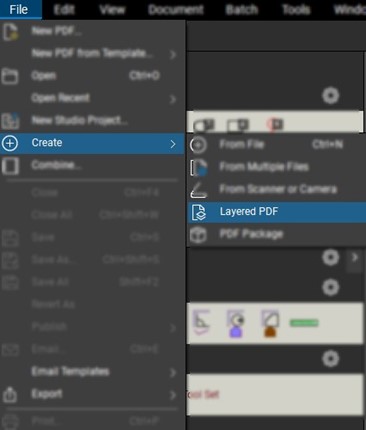
The first method you can use to create a Layered PDF is to navigate to the File menu tab > Create > Layered PDF. This will prompt you to select which files to create a Layered PDF. Browse other files to begin layering.
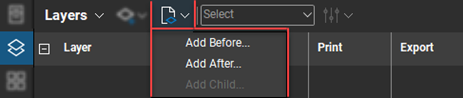
Another method for utilizing Layers is to utilize the Layers panel. You can create a blank layer to add content or create a layer with content from another document.

You also have the option to create a parent or child layer and select its location before or after any current layers.
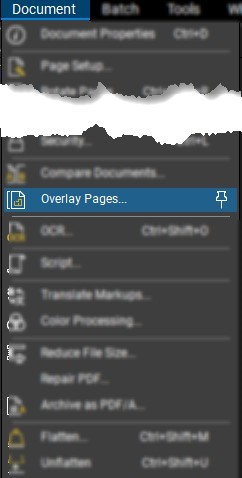
The final method to utilize Layers in Revu is to use the Document menu tab > Overlay Pages. This will allow you to create a PDF from any currently open documents or browse other documents to layer.
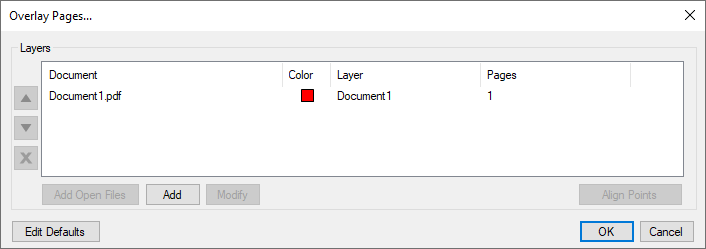
NOTE: I prefer this method because you can color the layers and align them if they are not oriented properly.
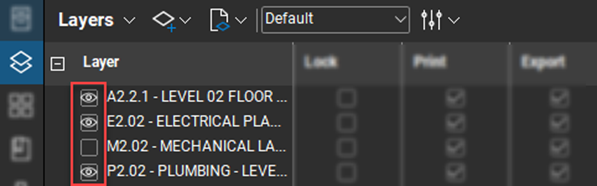
Once your layers have been configured appropriately, the (eyeball) icon in the layers panel allows you to toggle your layers on or off. A blank box means the layer is not currently turned on.
Once your layers are created, you can begin assigning markups to specific layers. This is a great way to organize who said what.

Select markups in the Markups List. Then, choose which layer to assign the selected markups from the Layers column.
Contact us to learn more about Bluebeam or book a free demo.
Author: Alex Arriaga
Reduce downtime and improve service efficiency with AI-powered troubleshooting. Learn how service teams use ilean to solve problems faster and capture knowledge.
The construction industry is entering a new era, and Bluebeam is once again leading the way. In 2026, Bluebeam Max will launch as a new premium subscription that combines the power of Revu with advanced AI technology. This blog highlights just some of features you will expect to see within Bluebeam Max.
In construction, the gap between the construction site and the office has always been a challenge. But by combining Bluebeam’s powerful PDF markup tools with GoCanvas’s mobile forms, companies can finally achieve seamless documentation that flows effortlessly from site to office.