
How AI Is Transforming Daily Work in Service Teams
Reduce downtime and improve service efficiency with AI-powered troubleshooting. Learn how service teams use ilean to solve problems faster and capture knowledge.

When it comes to Bluebeam Revu®, there’s always going to be more than one way to perform a task. Any shortcut to enhance efficiency is always appreciated. Below are a few tips & tricks I believe every Revu user should be familiar with.

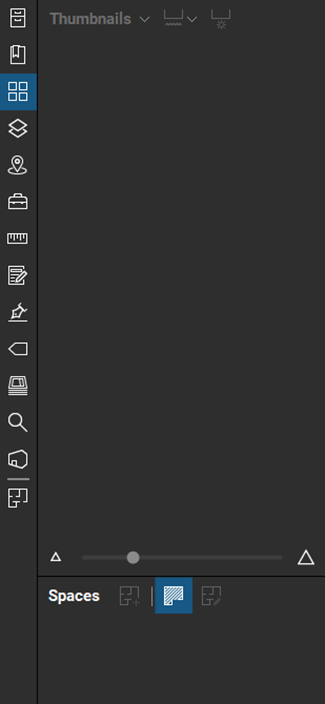
Few users know this, but you can have more than one panel open at a time at each panel access point. Drag a panel into the panel area. You can then snap the panel to four sides of the panel access point.
In the example below, we are dragging the “Spaces Panel” to the bottom of the panel. We can continuously snap these panels into one another.
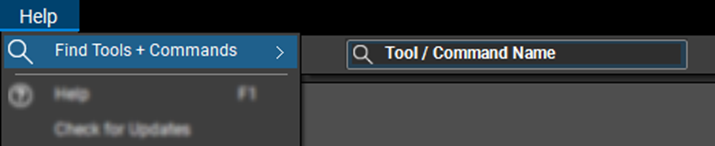
Ever found yourself looking for new functionality in Revu? Good news. The “Find Tools + Commands” option was added with the introduction of Revu 20. I find myself using this tool to quickly navigate to any tool or command.
This feature is listed under the Help menu tab.
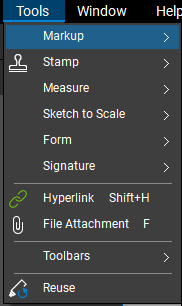
Within the Markup menu tab, you can add visual markups to text on a document. Options include the ability to add a Review Text visual, Underline, add an underlining Squiggly line, and even a Strikethrough option.
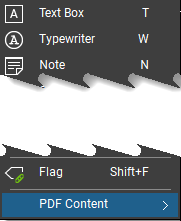
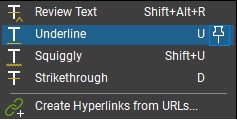
Hold the Shift key for a straight line and hold CTRL + Shift when editing text to wrap the text we want to edit.
Contact us to learn more about Bluebeam or book a free demo.
Author: Alex Arriaga
Reduce downtime and improve service efficiency with AI-powered troubleshooting. Learn how service teams use ilean to solve problems faster and capture knowledge.
The construction industry is entering a new era, and Bluebeam is once again leading the way. In 2026, Bluebeam Max will launch as a new premium subscription that combines the power of Revu with advanced AI technology. This blog highlights just some of features you will expect to see within Bluebeam Max.
In construction, the gap between the construction site and the office has always been a challenge. But by combining Bluebeam’s powerful PDF markup tools with GoCanvas’s mobile forms, companies can finally achieve seamless documentation that flows effortlessly from site to office.